Archive Note: This article was originally published on LinkedIn on September 24, 2024. It serves as a case study in rapid tool adoption and handling large-scale unstructured datasets.
Reflecting from 2026: This project remains one of my favorite examples of 'curiosity-driven development'. The workflow used here—Visual Recipes for cleaning and Python for the final mile—is still the gold standard for efficient data engineering.

I've had a bit of free time recently (nothing to do with that "open to work" banner on my LinkedIn profile image 🤫), and like the data geek I am, I decided to dive into something new. While poking around, I stumbled upon Dataiku Data Science Studio (DSS) - no grand plan, just pure curiosity. Naturally, I wanted something I could jump into straight away and something I had plenty of data for. It needed to be interesting, challenging, and, well, messy enough to test this thing out properly. Dry business examples have never really floated my boat when learning new products. So what could I use?
Then it hit me: Google Location History! Google has been tracking my every move for the last 13 years (don't worry, I'm cool with it), and I thought it'd be interesting to dive into that. However, things were not as simple as one neat dataset. Thanks to a couple of Google account changes (one potentially involving an "email bomb"—don't ask), I had three massive downloads, all with slightly different JSON schemas and overlapping data. In total, about 2GB of JSON begging to be tamed. Perfect Dataiku test subject, right?
Step 1: Spinning Up Dataiku (A.K.A., "Skipping the Docs")
I have this bad habit - jumping into new tools without reading the docs. I am not the sort of person who refuses to look at the docs (I have never had "RTFM!!!!" shouted at me 😁), I just like to see if I can figure things out intuitively. If I can, I consider it a win and a product which I am more inclined to RTFM when I eventually need to 😉. So, I spun up Dataiku DSS in Docker and got started.
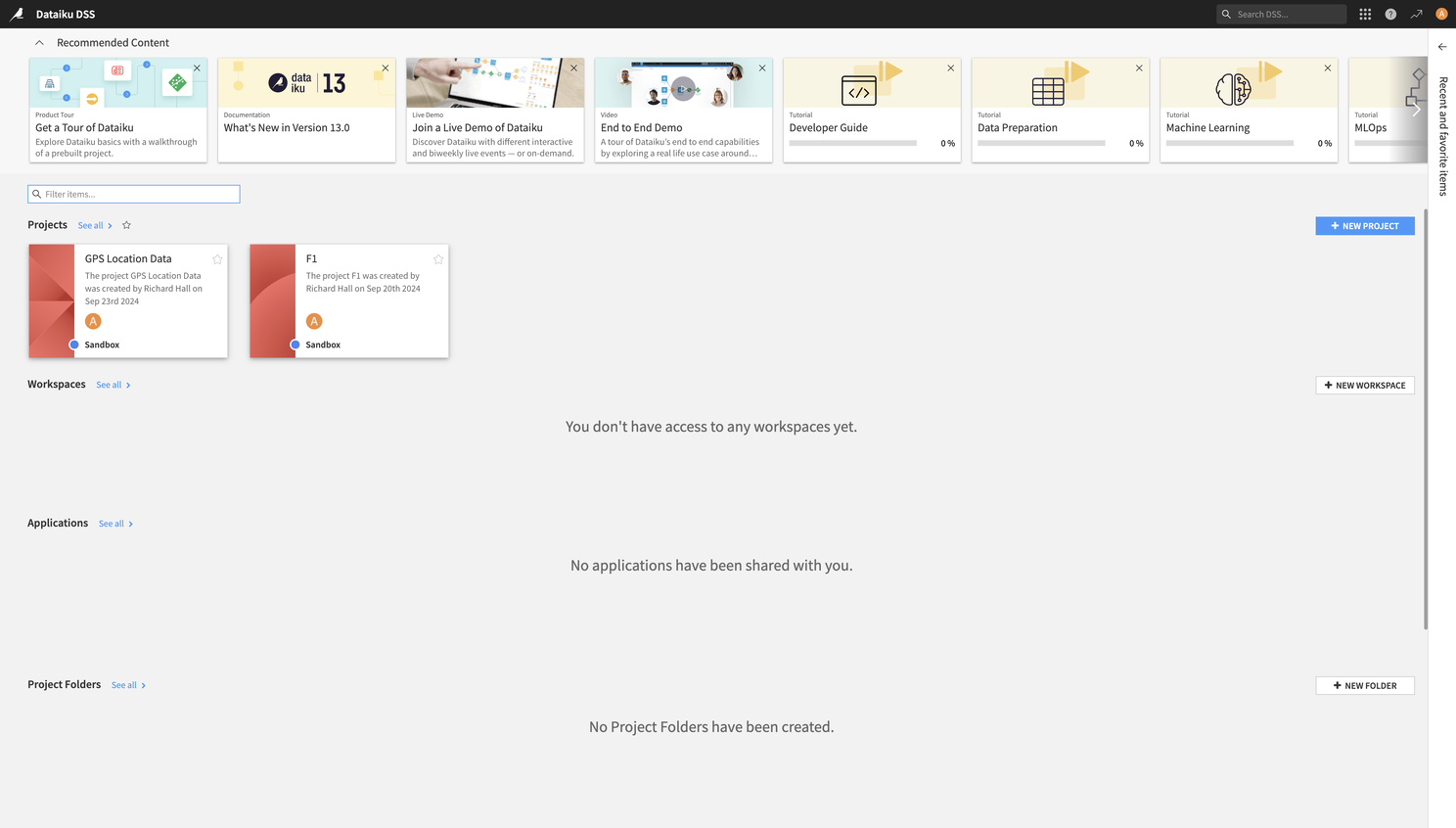
After getting it started, I was presented with this screen...well, not exactly. You'll see a couple of projects here. I didn't want to delete what I have been looking at to make this look "new". But it was essentially like this.
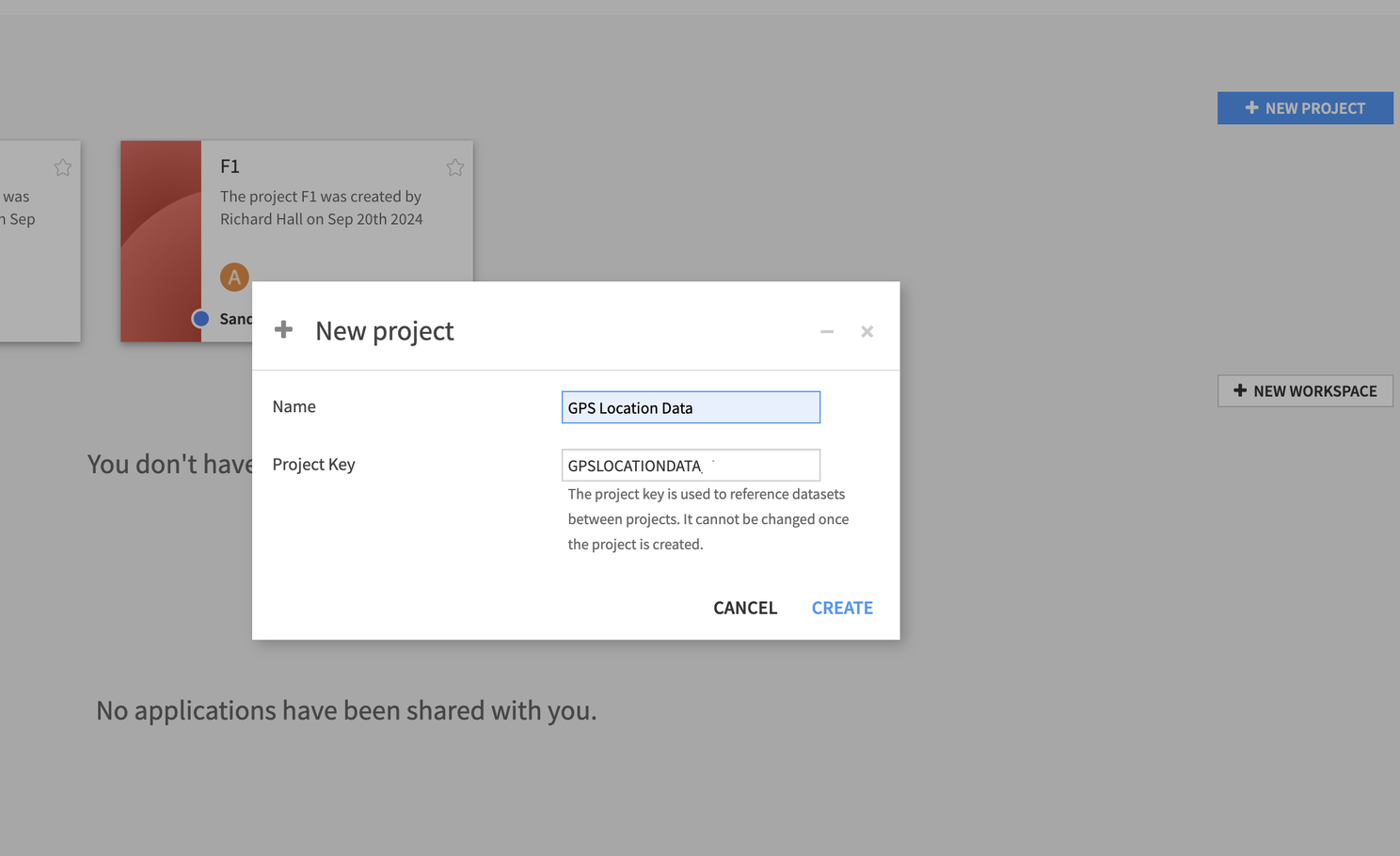
Creating a new project was easy - clicking the "New Project" button was pretty straight forward. I named it, and Dataiku automatically created a project key based on that. A nice little touch for those of us who are a little bit lazy and like the boring stuff done for us.
If you squint at my screenshots, you'll see an F1 project there too 😉. After seeing how easy it was to get into, I decided to expand my horizons a little. But I'll save that story for another day.
Step 2: Importing My First JSON File
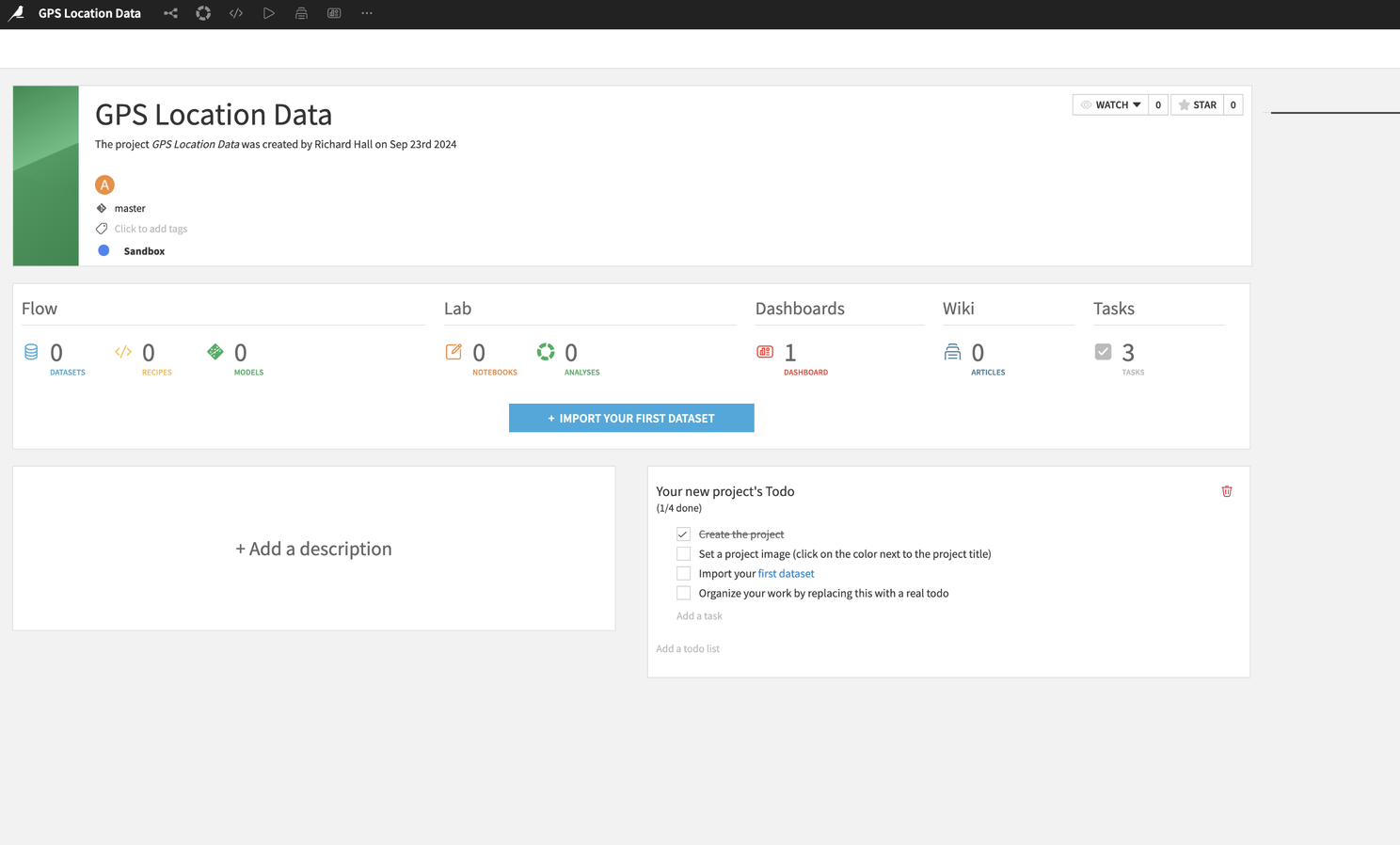
The next step? Upload the data. Dataiku guides you along the process really nicely. You are presented with a button saying "Import Your First Dataset"...which I pressed.
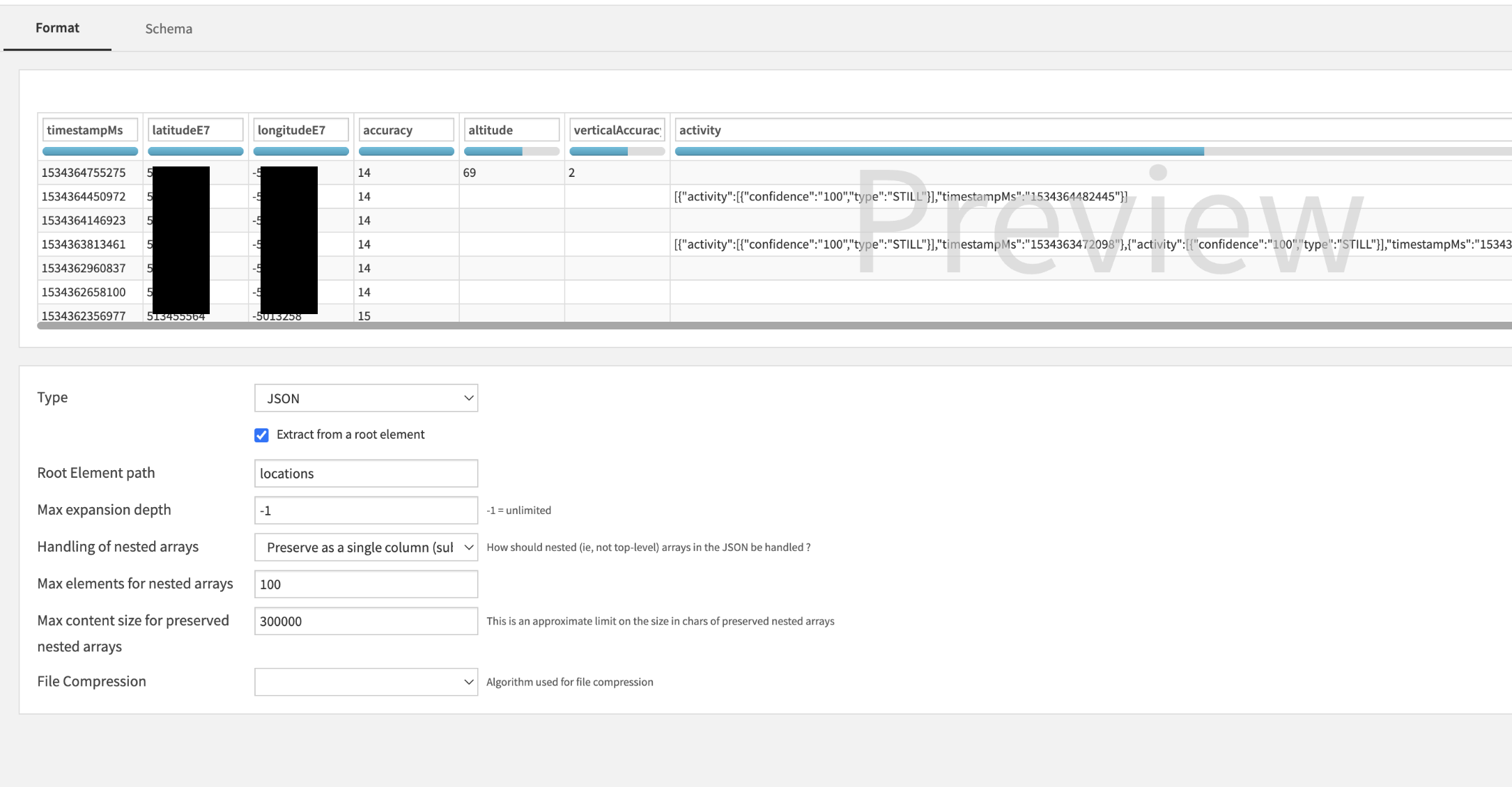
Since I was working with files, I selected the "Upload your files" option and selected the smallest JSON file to start with. What could go wrong? Well, Dataiku didn't exactly understand that it wasn't dealing with a CSV. So I thought, "Great, here's where I head to the docs." But before giving up, I noticed the "Configure Format" button.
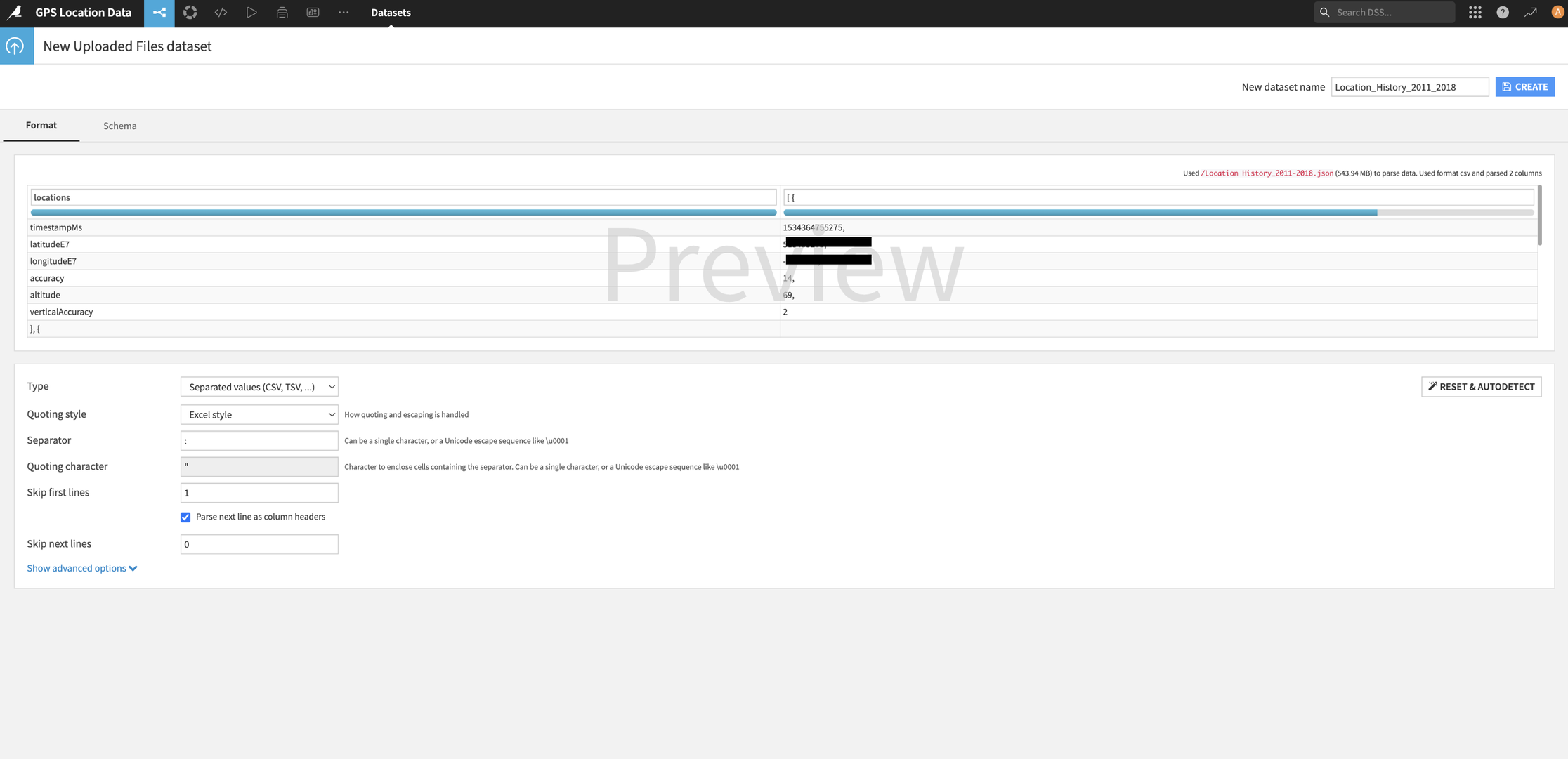
Clicking that opened up a world of options (okay, a menu). I switched it to JSON and reprocessed the file. Still not quite what I expected. That's when I saw an option to "Extract from a root element". My data was essentially in a massive JSON array called "locations", so I typed that in, hit go, and—boom!—there it was. Data in table format, ready to roll. (Also, yes, I've hidden my location data in the screenshot…I don't want any stalkers.)
I created the dataset and was quickly onto the next stage.
Step 3: Cleaning Up 13 Years of My Life (Or at Least the Data)
The screenshot below shows the next screen with the processed JSON data. It is converted to a table format with the outer array indices converted to rows with anything contained by those indices as columns (nested arrays are also included as columns). I didn't need all the columns, so I started hacking away. The essentials were longitudeE7, latitudeE7, timestampMS, and accuracy. So my first step was to remove the unnecessary column data. With millions of records to process, I didn't want to be bringing through more data than I needed.
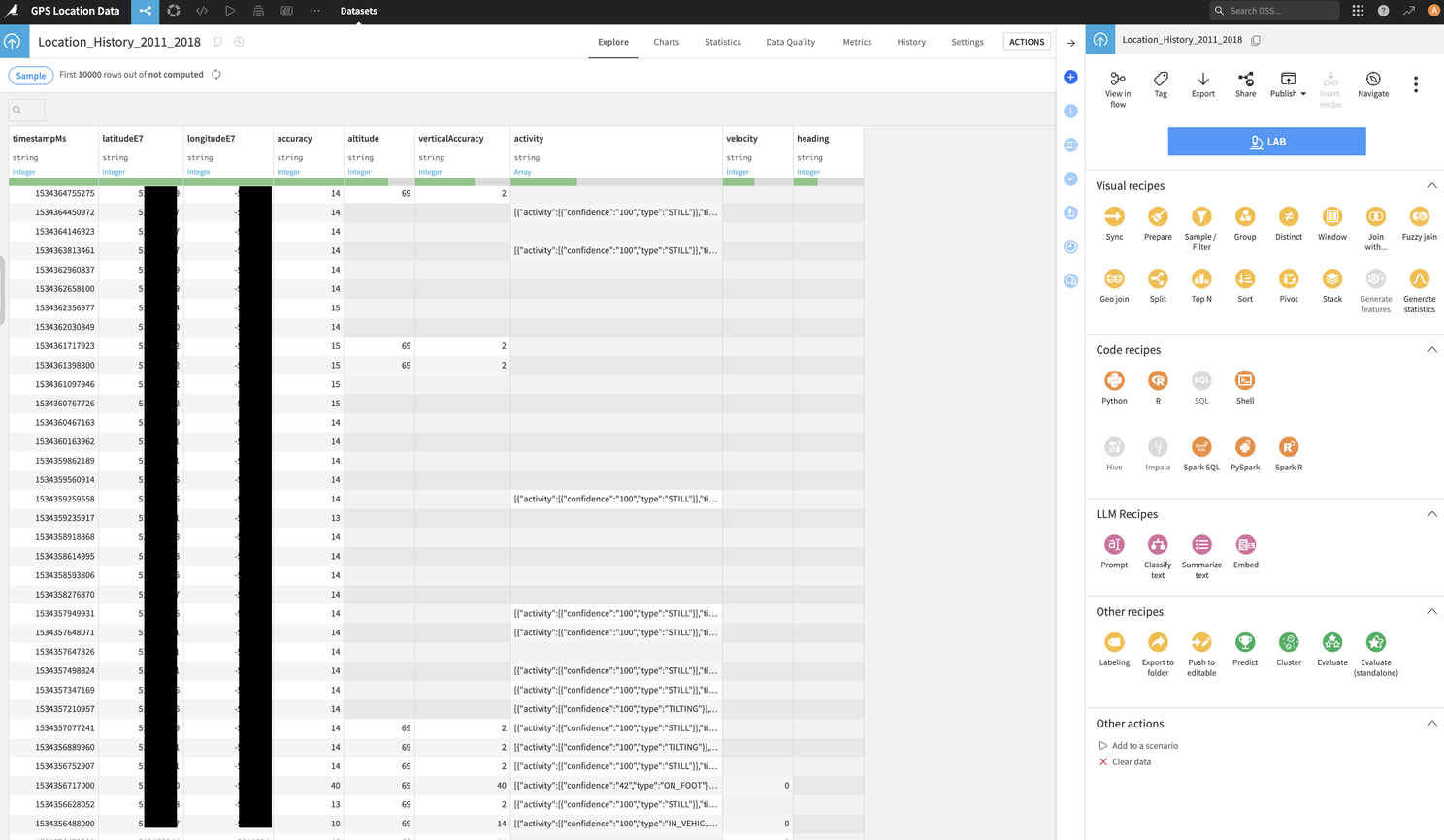
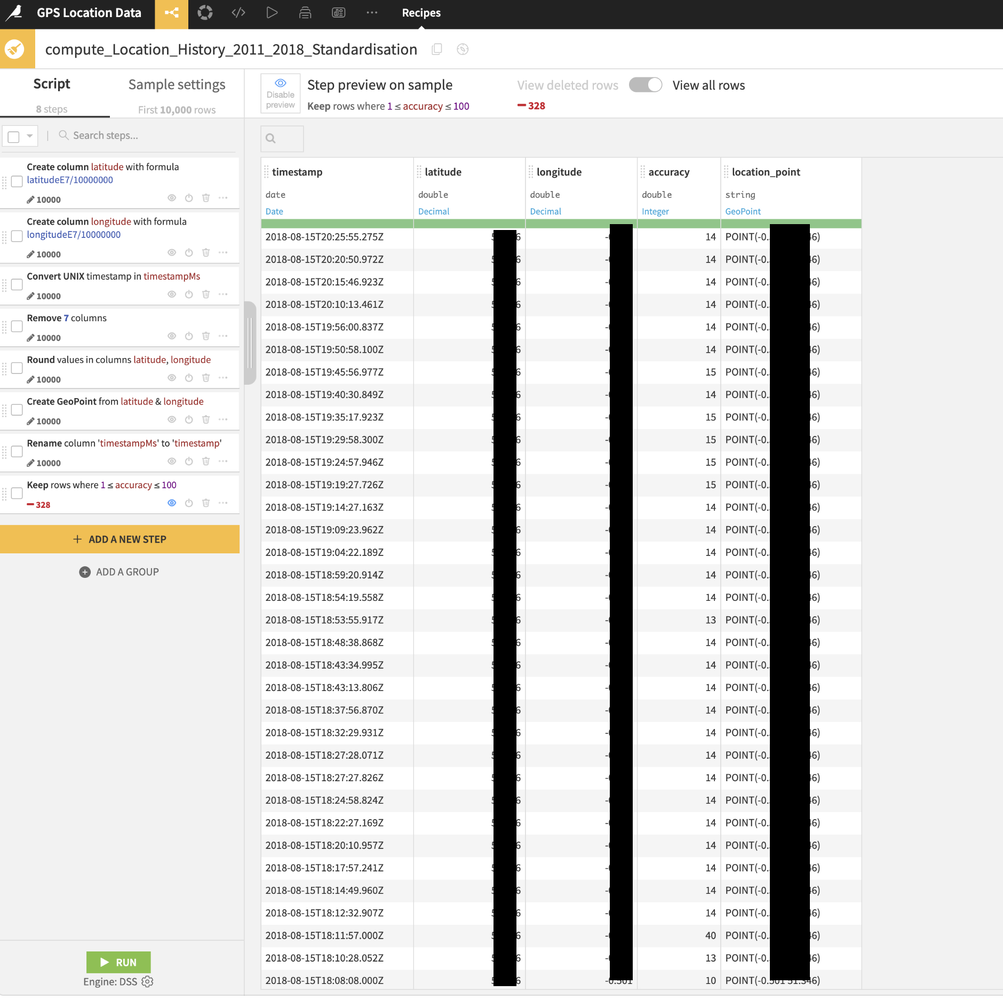
After playing around, I quickly found the "Prepare" Visual Recipe. You'll find a right sidebar with all of the recipe options if you click the "Actions" button. The prepare recipe enabled me to carry out the following. I did have to experiment a little, but still no need to go to the docs ✊
- I removed the unnecessary columns, leaving those I mentioned above.
- I adjusted the coordinates: Google gives you longitude and latitude multiplied by 10 million, so I divided them by (you guessed it) 10 million to get standard GPS data.
- I created a GeoPoint from the cleaned-up longitude/latitude values.
- I filtered the data by the accuracy column: I only wanted location data where Google had tracked me to within 100 meters of accuracy.
I still had A LOT of data from just one of the 3 files I was intending to process. I decided that I would probably need to reduce the GPS coordinates where tiny variations were present. I didn't want my Mac to die from overload, so I rounded the coordinates to three decimal places. That gave me about 111m accuracy—perfect for a general sense of where I'd been without creating unnecessary bloat. I will use these truncated GPS coords later in a deduplication process.
Step 4: Tackling the Other Files (Now We're in Business)
With the first file ready, I repeated the process for my other two JSON files. As I said, they were all in slightly different formats, but I was essentially able to follow pretty much the same process, trimming the fat, rounding the coordinates and altering a few different data types. The key output here is ensuring the remaining columns are all formatted the same way and named the same.
At this point, I checked my Flow. This can be seen below. I should point out that this is my completed Flow. So the section you will see at this point is inside a red square. The rest comes next...this is where the green squared content comes into play.
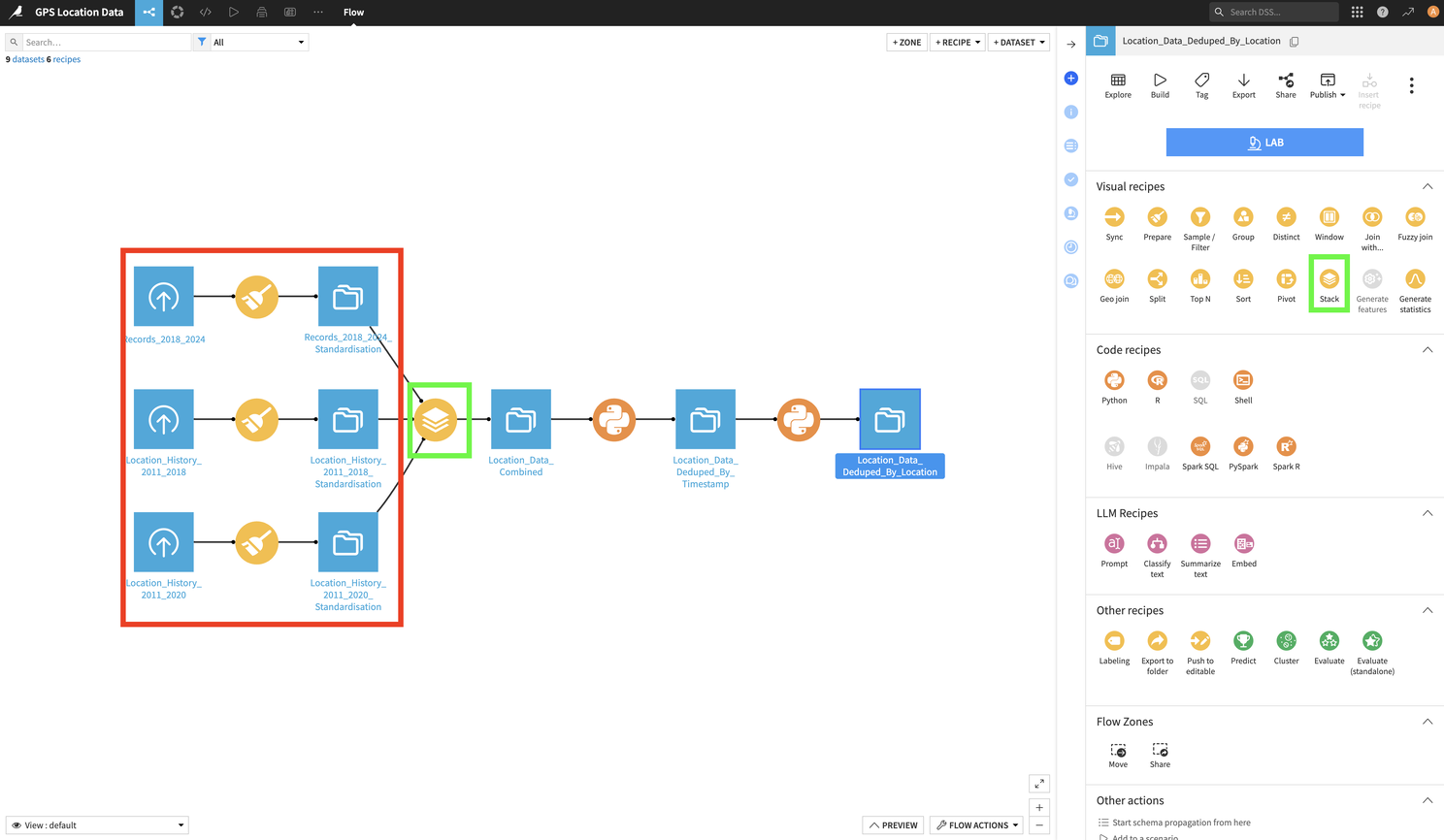
With all three datasets prepared, I needed to join them together into one dataset. I "stacked" them using a Stack recipe (think of it as a SQL UNION, but without the code). You can see the Stack recipe in the flow in the green box. It is enabled by clicking on one of the three processed datasets, then clicking on the Stack recipe icon in the right side panel (also highlighted by a green box). It is super simple and very intuitive. Once done, it gave me my completed dataset. Except for one little problem: duplicates. Because of the data overlaps mentioned earlier, I had a lot of repeated records. How to deal with these?
Step 5: Deduplication (A.K.A., When I Finally Caved and Used Python)
I wanted to dedupe based on timestamp, keeping only the location point with the best accuracy. DSS has a Distinct recipe, but it didn't quite do what I needed. Now, I am new to DSS and I am sure that there will be another way of achieving this goal without using code, but I wanted to try out using Python here. A code free environment is great to work with and makes it very easy for the processes to be easily shared. No need for copious notes and very little risk of someone becoming the sole proprietor of "how it all works"...but often a bit of code can really extend the "out of the box" functionality. I wanted to see just how easy it was to extend the functionality, in this case, even if it didn't need it.
So the requirement here was as follows:
- Find duplicated dates in the set of records.
- For each duplicated set of timestamps, reduce them to a single record using the accuracy column to identify the best record.
- If there is no accuracy value, remove the row (I discovered this was a problem after my initial attempt at this).
- All columns for that record must be returned.
To do this, I used a Python Code recipe. I clicked on the dataset that held all of my data and then clicked on the Python Code recipe icon.
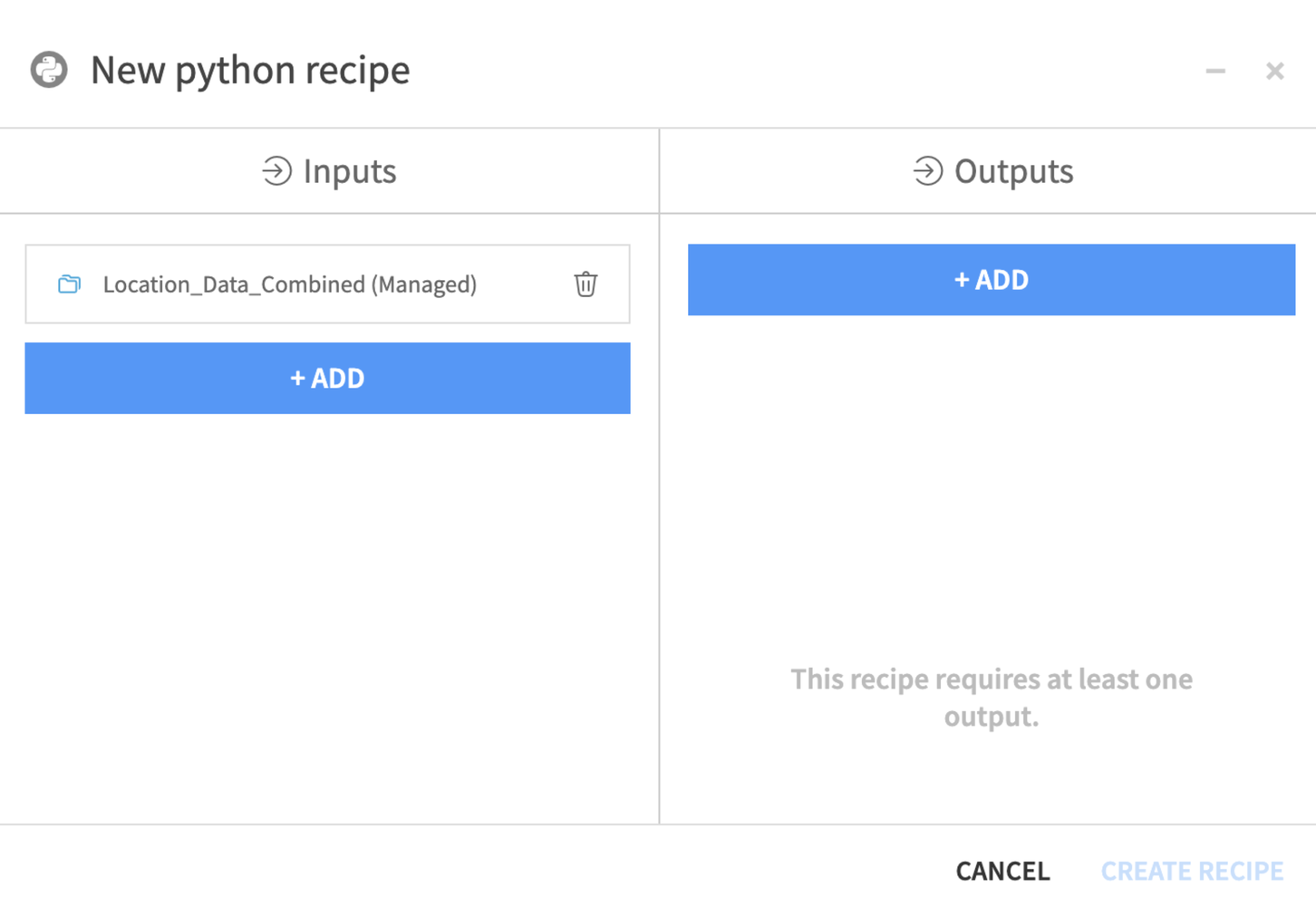
As with most other recipes, this was pretty simple. My input was already selected, I just needed to add an output (an output dataset). I gave it a name and was presented with this screen.
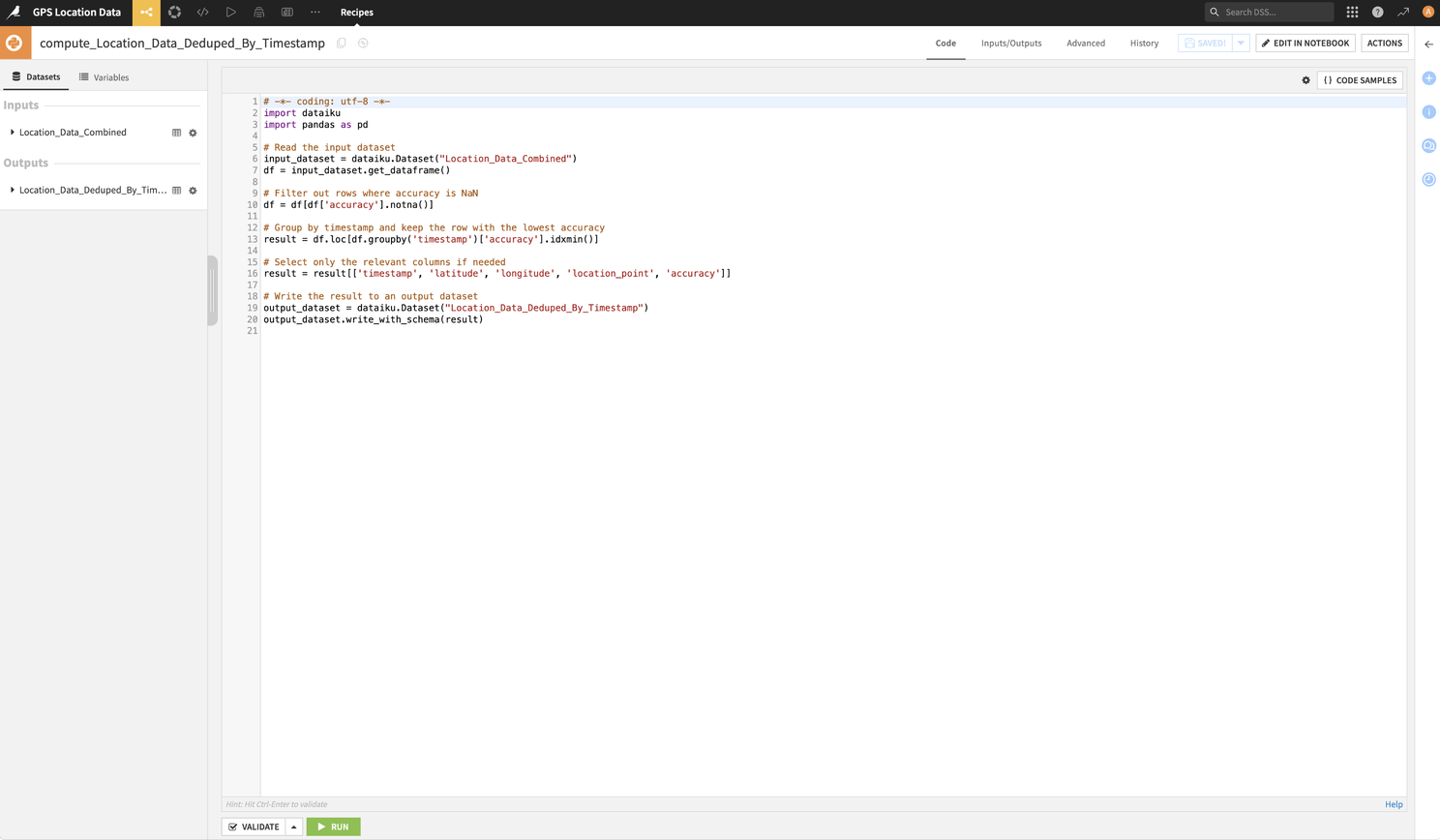
It provides you with a basic template with the input and outputs you have selected. I added to this with the code below. Note: the code you can see above is not the template it gives you, it is the code I added to the template. This code can be seen and copied below.
# -*- coding: utf-8 -*-
import dataiku
import pandas as pd

# Read the input dataset
input_dataset = dataiku.Dataset("Location_Data_Combined")
df = input_dataset.get_dataframe()

# Filter out rows where accuracy is NaN
df = df[df['accuracy'].notna()]

# Group by timestamp and keep the row with the lowest accuracy
result = df.loc[df.groupby('timestamp')['accuracy'].idxmin()]

# Select only the relevant columns if needed
result = result[['timestamp', 'latitude', 'longitude', 'location_point', 'accuracy']]

# Write the result to an output dataset
output_dataset = dataiku.Dataset("Location_Data_Deduped_By_Timestamp")
output_dataset.write_with_schema(result)
After running this, I checked the output dataset and it looked like it had done what I wanted. But I spotted another issue, I had thousands of GeoPoints which were duplicated.
Step 6: Deduping by Location (Because Redundancy Isn't Fun)
Now, if I wanted to produce a heat map, the data I was left with by the Python code I have just used would be perfect. However, in this case I just wanted to identify places where I had been. So, I reworked the above code to do something very similar where GeoPoint locations were duplicated.
I created another Python Code recipe, using the output dataset of my previous piece of Python code as my input.
You can see this code below.
# -*- coding: utf-8 -*-
import dataiku
import pandas as pd

# Read the input dataset
input_dataset = dataiku.Dataset("Location_Data_Deduped_By_Timestamp")
df = input_dataset.get_dataframe()

# Group by latitude and longitude and keep the row with the lowest accuracy
result = df.loc[df.groupby(['latitude', 'longitude'])['accuracy'].idxmin()]

# Select only the relevant columns if needed
result = result[['timestamp', 'latitude', 'longitude', 'location_point', 'accuracy']]

# Write the result to an output dataset
output_dataset = dataiku.Dataset("Location_Data_Deduped_By_Location")
output_dataset.write_with_schema(result)
Before I started the deduplication process of overlapped timestamps and repeated GeoPoints, I had 5,406,086 records. At a record a minute, that is around 10 years worth of records, so that seemed about right. Google doesn't take a record a minute (it ranges between 1 and 2 minutes on average, with some at increased rates and others much slower) and this data was covering just over 13 years. So it seemed about right to start with. But after the deduplication, I was left with 53,832 rows. So, if my deduplication worked, this means that in 13 years I have been present in 53,832 111m squared locations....of course the overlap does need to be taken into consideration. But wow!....until you see just how small an area that appears to be when shown on a map.
Step 7: Seeing My Life on a Map
With all the cleaning done, I was excited to see where I'd been. I headed over to the Dashboards feature in DSS, set up a new dashboard, and added a Scatter Map chart using my deduplicated location data.
To do this, I clicked on the Dashboard icon and selected "Dashboards".
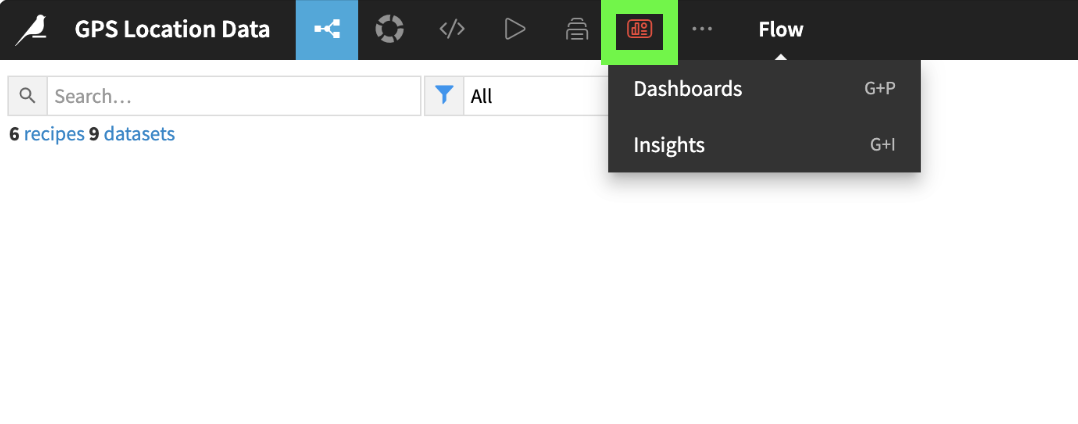
The Dashboard screen appeared, and as with most of DSS, it is quite intuitive.

You click on "Create Your First Dashboard" and once you have filled in your dashboard name and clicked "Create Dashboard", you are presented with an empty screen with a single "New Tile" button. Click on that and this popup appears asking you to select what you want from your Tile.
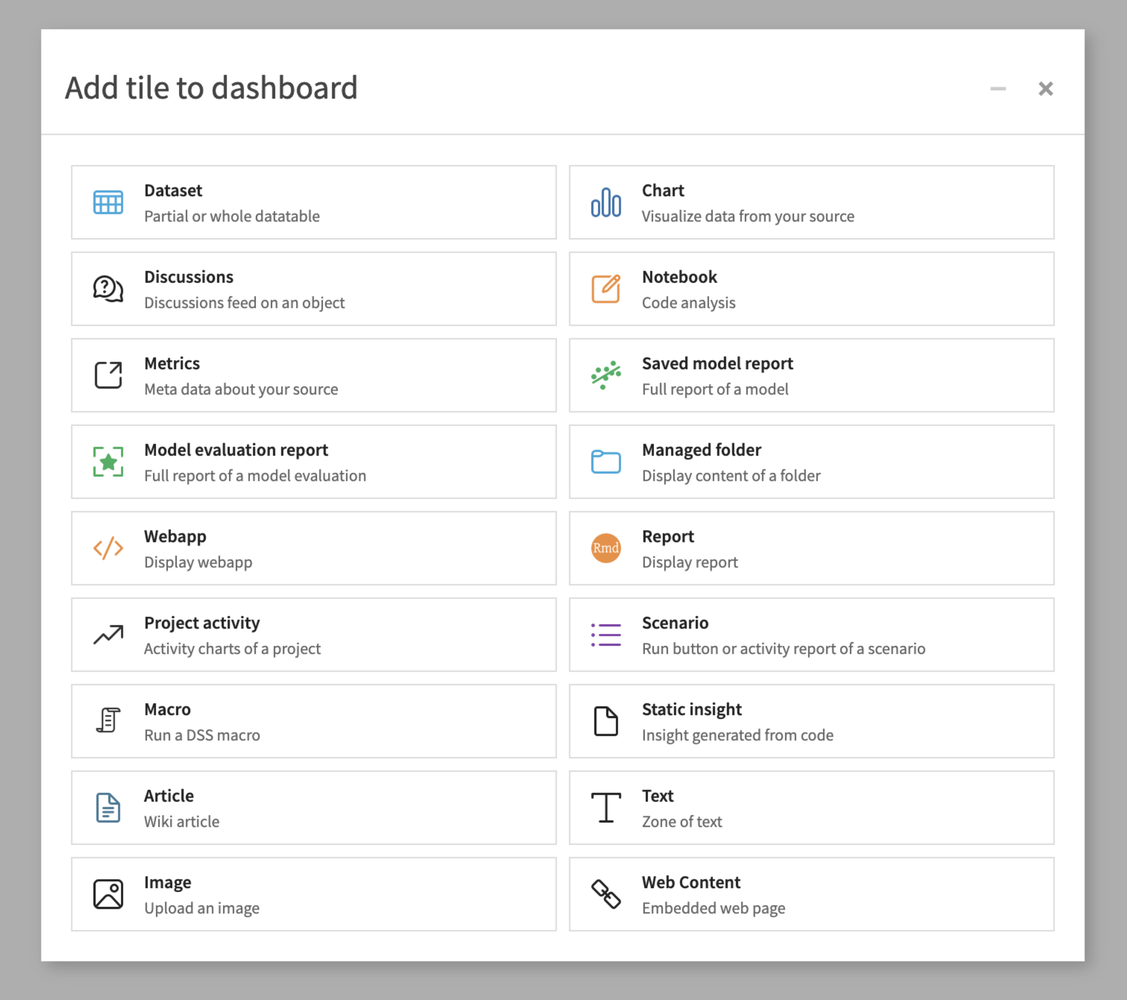
I had a play around with a few of these, but in this case I decided that "Chart" would be what I needed. On selecting that, I was presented with this popup.

I selected the datasource to base this on (the last datasource created by the deduplication), picked an insight name (nothing terribly exciting, but says what it is on the tin) and clicked "Add". I was then taken to this screen.
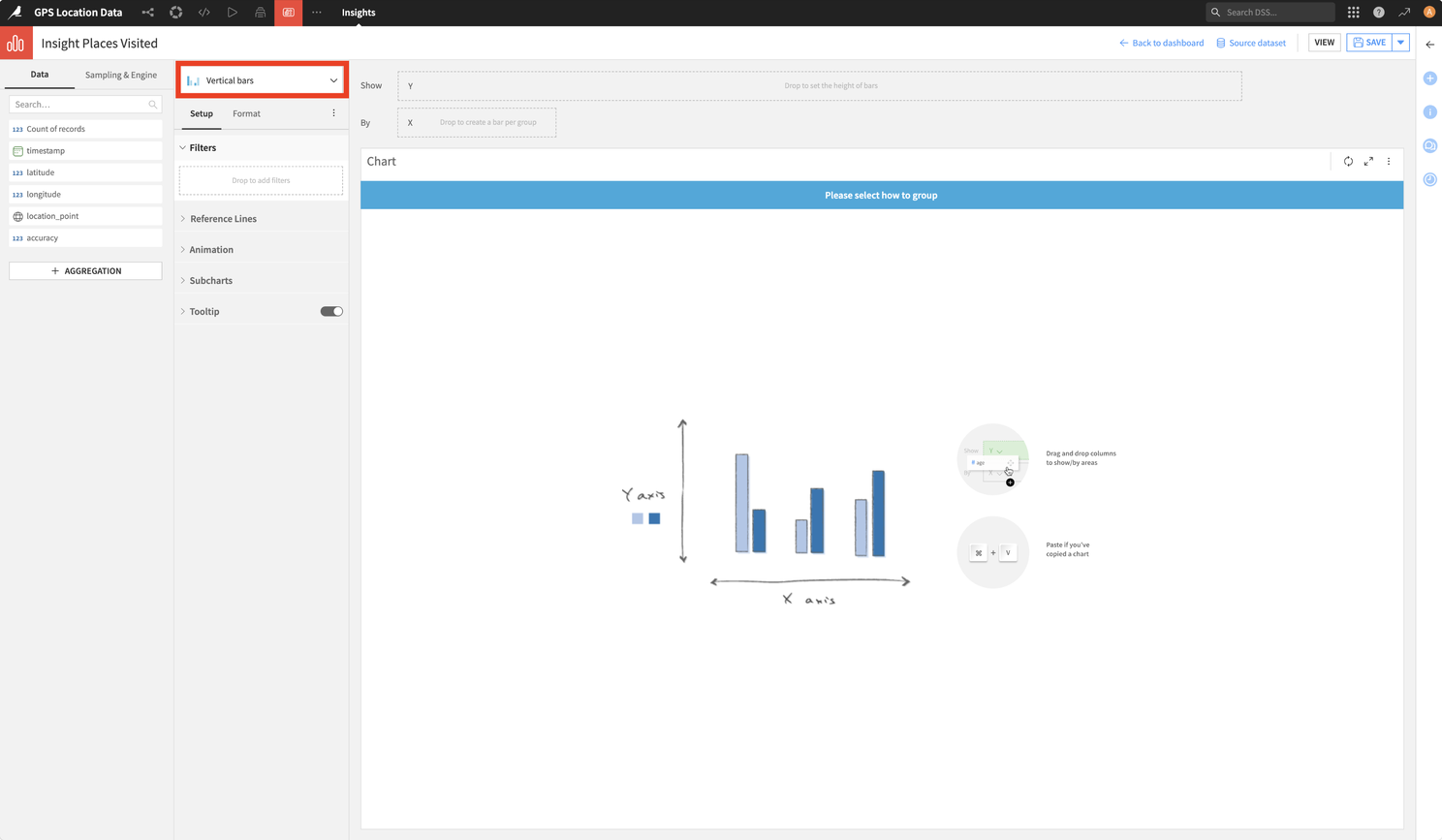
Now this took a bit of figuring out to decide how to select my chart style, the chart style that I wanted and how to populate it with data. But once I started finding my way around here, it became more intuitive. I realised that I could select the chart type by clicking on the section which says "Vertical Bars" (surrounded by the red box). This showed me the following menu.

After trying a few options out, I settled on "Scatter Map". The chart changed to reveal a new screen which looks similar to this...but without the populated map. To get this, you drag the GeoPoint column (or "location_point" in my case) to the "Geo" field (shown in the red box below).

At this point, I could see where I have been over the last 13 years! But I wanted to tweak a few bits and pieces like the size of the points and colour of the points. This was done using the "Format" tab, which can be selected by clicking on the title which is surrounded by the red square in the screenshot below.
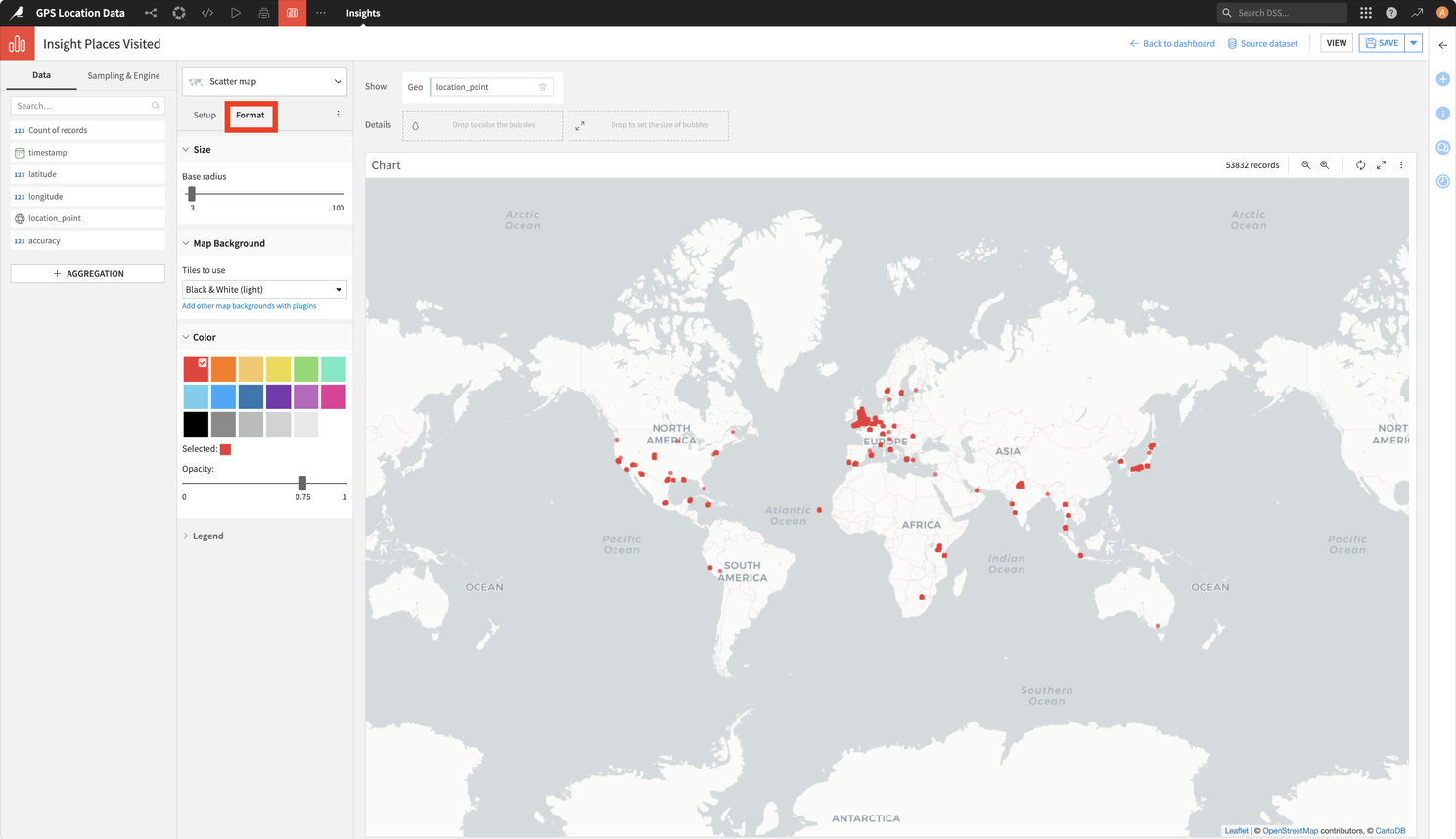
The result? Well, it's not quite as much of the Earth covered as I initially thought it would be. But then, I wasn't using a lot of data on my phone when overseas 10 to 13 years ago. So there are a few places that I know are missing. However, every continent but Antarctica is covered...so I've got evidence that I've not lied on my CV 😁
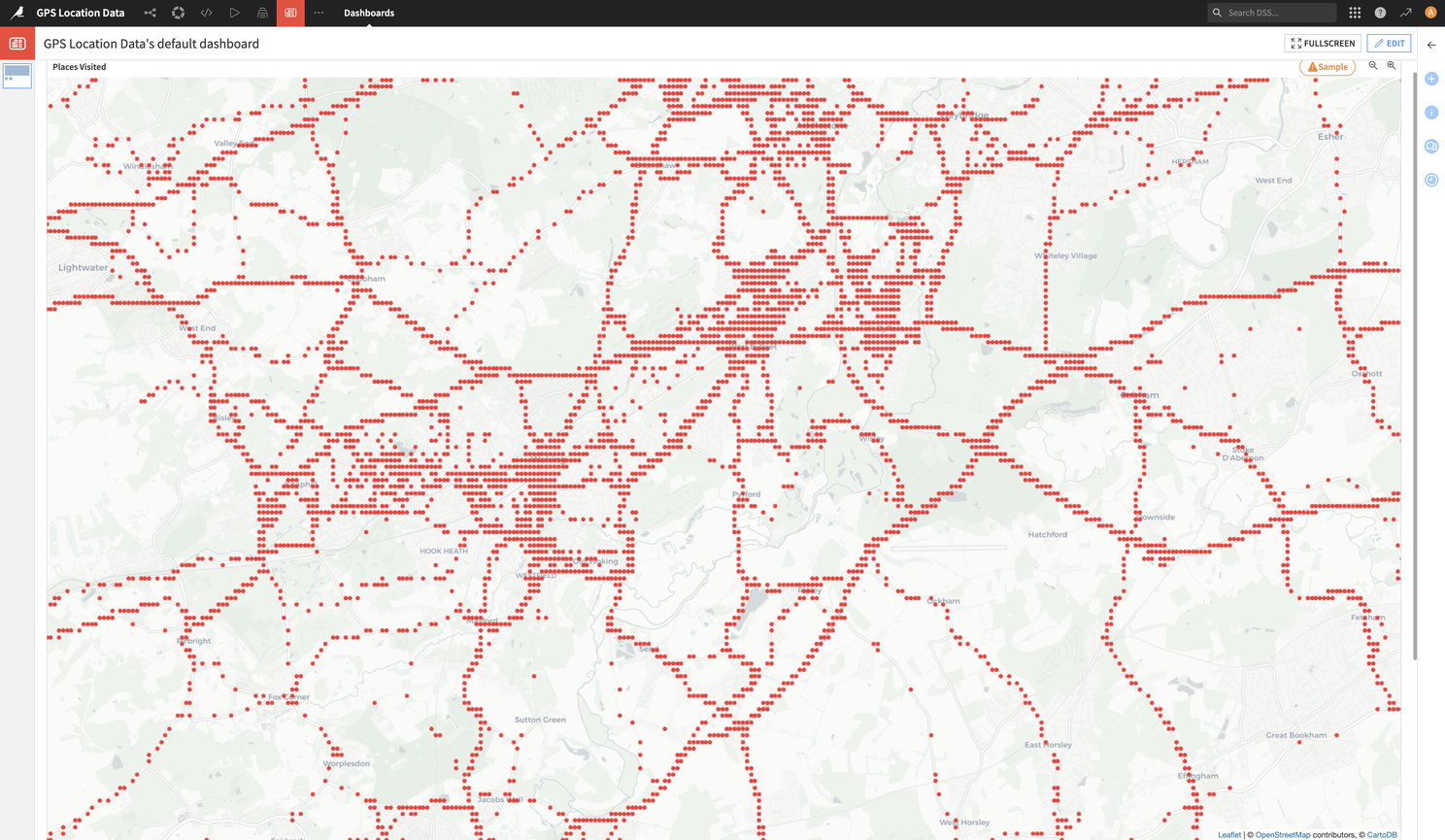
It's not so easy for me to allow you to zoom in and out of my map in this article, but the way in which I truncated the coordinates to 3 decimal places is shown on the map quite well when you zoom in. Here's a screenshot of this in an area where I have clearly spent a bit of time. Each of the points on the map are spaced to show the limitations of only 3 decimal place GPS coordinates.
Final Thoughts (a.k.a., Why You Should Try Dataiku)
Within a couple of hours I was able to process 2GB of timestamp and position overlapping location data, in different formats and was able to do this from never having used Dataiku DSS before. Not bad at all....I'm talking about the product by the way 😉
It should be pointed out that I have barely scratched the surface of what this product can do. As I have said, I am currently playing around with some F1 race data and have also hooked this up to MongoDB. The free version doesn't actually provide you with a connection to MongoDB, but if you set up Node.js and MongoDB containers in Docker, along with your Dataiku DSS container, you can build APIs to pull your MongoDB data into DSS really easily.
I'm genuinely impressed by DSS and believe it's one of those hidden gems that, once discovered, opens up a wealth of personal (and perhaps slightly geeky) use cases, as well as business applications that you might have previously thought would be too much effort. I've a lot more to discover with DSS, but going through this exercise has really motivated me to explore a lot further and deeper.
...since I mentioned my MongoDB, Node.js and Dataiku Docker setup...
It took me a while to figure out what I needed to do to set my Docker containers up for this, so here is my docker-compose.yml in case you are interested. I have also included Grafana in there...for my F1 data plans 😉
services:
  mongodb:
    image: mongodb/mongodb-community-server:latest  # Use the correct image name
    ports:
      - "27017:27017"
    environment:
      - MONGO_INITDB_ROOT_USERNAME=admin
      - MONGO_INITDB_ROOT_PASSWORD=password
    volumes:
      - ./mongo-data:/data/db
    networks:
      - backend

  mongo-express:
    image: mongo-express:latest
    restart: always
    ports:
      - "8081:8081"
    environment:
      - ME_CONFIG_MONGODB_ADMINUSERNAME=admin
      - ME_CONFIG_MONGODB_ADMINPASSWORD=password
      - ME_CONFIG_BASICAUTH_USERNAME=admin
      - ME_CONFIG_BASICAUTH_PASSWORD=password
      - ME_CONFIG_MONGODB_SERVER=mongodb
    networks:
      - backend

  # Grafana for reporting and visualizing MongoDB data
  grafana:
    image: grafana/grafana:latest
    container_name: grafana
    ports:
      - "3000:3000"  # Grafana UI available at localhost:3000
    volumes:
      - ./grafana_data:/var/lib/grafana
    depends_on:
      - mongodb
    networks:
      - backend
    environment:
      GF_SECURITY_ADMIN_USER: admin
      GF_SECURITY_ADMIN_PASSWORD: admin

  # Node.js for APIs and web server
  nodejs:
    image: node:latest
    container_name: nodejs
    volumes:
      - ./app:/usr/src/app
    working_dir: /usr/src/app
    command: bash -c "npm install && npm start"
    ports:
      - "4000:4000"
    depends_on:
      - mongodb
    environment:
      MONGODB_URL: mongodb://admin:password@mongodb:27017/local?authSource=admin
    networks:
      - backend

  # Dataiku DSS
  dataiku:
    image: dataiku/dss
    container_name: dataiku
    ports:
      - "10000:10000"  # Default port for Dataiku DSS
    volumes:
      - ./dataiku_data:/data/dss  # Persistent storage for Dataiku DSS data
    environment:
      DSS_ADMIN_PASSWORD: admin  # Set the admin password for DSS
    networks:
      - backend

networks:
  backend:
    driver: bridge
Source: This article was originally published on LinkedIn.
Status: Archived & Updated for rilhia.com.